WordPress Security Checklist: 20 Steps to Protect Your Site
A working checklist for hardening a WordPress site, logins, files, database, hosting and monitoring, written from what actually breaks on sites in production.
Most hacked WordPress sites I get called about were not targeted. They were found by a bot scanning for a known plugin version, a weak admin password, or an unprotected wp-config.php. Nothing sophisticated, just the doors nobody locked.
This is the checklist I work through on every site I build or take over. I have delivered 50+ WordPress sites across corporate, healthcare and e-commerce projects, and I now spend my days as a QA engineer breaking software on purpose. Both jobs teach the same lesson: attackers go for the cheapest way in, so you close the cheap ways in first.
Work top to bottom. The first section alone stops the large majority of automated attacks.
Secure Your WordPress Login and Admin Panel
Your login page is the first place hackers try to break in. Here’s how to lock it down.
Use Strong Login Credentials
It sounds obvious, but many people still use weak passwords like “password123” or “admin” as their username. Don’t do this!
Instead: Use a unique username (not “admin” or your domain name). Set a long, complex password with a mix of uppercase, lowercase, numbers, and special characters. Use a password manager like LastPass or Bitwarden to generate and store secure passwords.
Hackers use automated bots to guess your credentials, don’t make it easy for them!

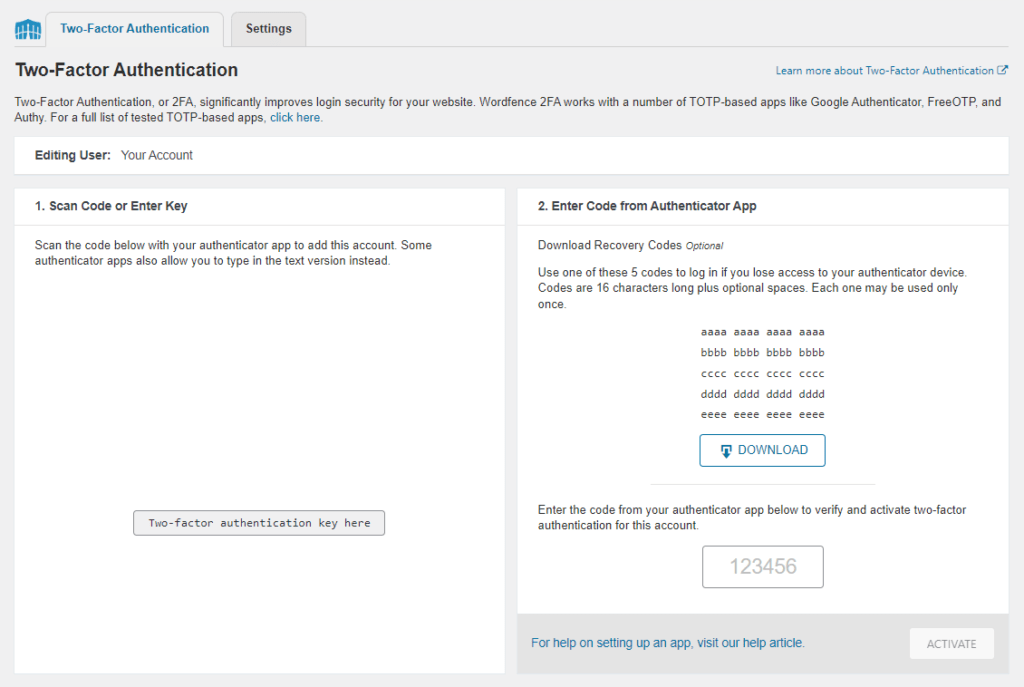
Enable Two-Factor Authentication (2FA)
Even if a hacker gets your password, they won’t get past 2FA. Two-factor authentication (2FA) requires an extra verification step, like a code from an authenticator app (Google Authenticator, Authy).
How to enable it?
- Install a security plugin like WP 2FA, Google Authenticator, or Wordfence.
- Activate 2FA for admin accounts (and other users if needed).
- Use an authentication app instead of SMS for better security.
Change the Default Login URL
By default, WordPress login pages are at /wp-admin or /wp-login.php, and hackers know this.
Solution: Change the login URL using a plugin like WPS Hide Login.
Instead of yourwebsite.com/wp-admin, you could use something like: yourwebsite.com/secret-login-page (just don’t forget it!)
Limit Login Attempts
Brute-force attacks involve hackers trying multiple username/password combinations until they get in. Protect your WordPress site by doing this
Fix this by:
- Installing Limit Login Attempts Reloaded or Login Lockdown.
- Setting a limit (e.g., 3-5 failed attempts before blocking the IP).
This makes it much harder for hackers to brute-force their way in!
Automatically Log Out Idle Users
Leaving an admin account logged in for too long is risky, someone could hijack the session.
Set up auto-logout for inactive users with a plugin like Inactive Logout. Choose a reasonable time limit (e.g., 15-30 minutes of inactivity).
This prevents unauthorized access if you ever leave your computer unattended.
Protect Your WordPress Files and Database
Your database stores everything, from posts to user information. If a hacker gets in, they can cause serious damage. This is essential WordPress security tip.
Secure the wp-config.php File
The wp-config.php file holds critical database credentials. To protect it:
Restrict access by adding a deny rule for wp-config.php to your .htaccess file.
Then move wp-config.php one directory above the web root. WordPress still finds it there, and the web server cannot serve it.
Disable File Editing from WordPress Dashboard
If a hacker gains admin access, they can inject malicious code into theme and plugin files.
Prevent this by adding this line to wp-config.php:
This removes the ability to edit files from within WordPress.
Change the Default Database Prefix
WordPress databases use wp_ as a prefix by default, making them vulnerable to SQL injections.
To improve security: Change the prefix from wp_ to something random (e.g., mywp_abc123). Use security plugins like WP-DBManager to rename existing tables.
Restrict PHP Execution in Sensitive Folders
Hackers sometimes upload malicious PHP files to execute attacks. To disable PHP execution in folders like /uploads/, add this to a new .htaccess file inside those folders:
Disable XML-RPC
XML-RPC is an outdated feature that allows remote connections but is often exploited for brute-force attacks.
To disable it, add this to .htaccess:
Or just use a security plugin to turn it off!
Enhance WordPress Hosting and Server Security
Choose a Secure Hosting Provider
Not all hosting providers are secure. Choose one that offers: Daily backups Built-in firewalls & malware scanning DDoS protection
Some great options: Hostinger, SiteGround, Kinsta, WP Engine.
Set Up File & Folder Permissions
Files and folders should have the correct permissions to prevent unauthorized access:
- Folders: 755
- Files: 644
- wp-config.php: 600 (extra secure!)
Enable an SSL Certificate
SSL encrypts data between your site and visitors, protecting logins, payments, and personal info. WordPress security rely on this.
Free SSL: Let’s Encrypt (available on most hosts). Premium SSL: Offers higher security and warranties ($10,000+ coverage).

Regular Website Maintenance and Monitoring
Keep WordPress, Themes, and Plugins Updated
WordPress updates patch security holes, so always update:
- Core WordPress (enable auto-updates if possible).
- Themes & plugins (delete unused ones!).
Outdated software = an open door for hackers.

Monitor User Activity and Security Logs
Keep an eye on who logs in and what they do using plugins like: WP Activity Log Sucuri Security
If something looks suspicious, take action immediately!
Run Malware Scans Regularly
Use security plugins like:
- Wordfence (firewall + malware scanner)
- Sucuri (website firewall)
- MalCare (auto malware removal)
Create Regular Backups
If your site gets hacked, a recent backup can save you.
Use UpdraftPlus, BlogVault, or Jetpack for automatic backups. Store backups offsite (Google Drive, Dropbox).
Final Thoughts: Strengthen Your WordPress Security Today
Security Checklist: Strong passwords & 2FA Secure hosting & SSL Update everything regularly Scan for malware & create backups
Cybersecurity is an ongoing process. But with these steps, your WordPress site will be far more secure.
Now it’s your turn! Want a perfect WordPress website by experts? Contact me now!
Related
See how I build and maintain WordPress sites in the portfolio, or read what is included in WordPress development and SEO.
More posts
Most small sites do not need an SEO strategy. They need eight technical things fixed, and most of them are already broken by default.
Beautiful portfolios get ignored every day. The ones that get replies answer a question the pretty ones never address: what did you decide, and why.
Most test suites are thorough about the wrong things. Fifteen variations of an empty field, nothing about what happens when the session expires halfway through checkout.
The tools moved from autocomplete to agents that plan and execute across files. That is a real shift. It also moves the bottleneck somewhere most teams have not staffed.
I pay for more than one of these, which tells you the comparison is not as simple as picking a winner. Where each model is genuinely better, from daily use rather than benchmarks.
Every model is best at something and mediocre at something else. This is which one I open for which task, based on using all of them inside real client work rather than on benchmarks.
AI can write a WordPress plugin in a minute. Whether you should put that plugin on a live site is the part nobody covers. From someone who reviews this code for a living.
Most slow WordPress sites are slow for two or three specific reasons. Here is how to find which ones, in the order that gives you the biggest drop in load time for the least work.
AI can draft your test cases in seconds. Whether those cases find anything is a different question. What a year of using AI tools inside a real QA job actually changed.
AI writes the code in seconds. Someone still has to find out whether it works. A QA engineer’s view of what vibe coding actually costs, and how to use AI tools without shipping their mistakes.
Ten UX/UI trends worth knowing, sorted by whether they change what you actually build or just what design blogs look like this year.
AI can lay out a screen, read behaviour data and run usability checks. It cannot decide what the product should be. A practical look at where the line sits.